Windows Live Writer Plugins (Flickr4Writer and Tag4Writer)

Leave it to Tim Heuer to be on the ball with adding functionality to Windows Live Writer, with not one, but two plugins.  Flickr4Writer adds an interface to insert images from Flickr into your blog postings, as seen below:

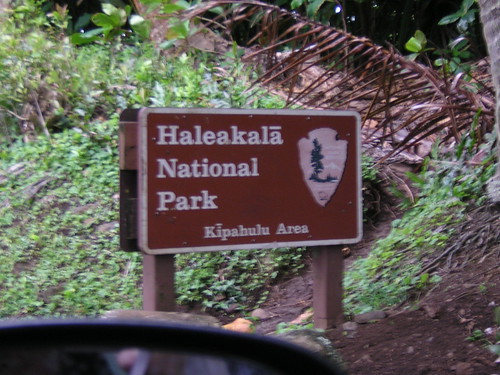
East side of Haleakala Park


The other app, Tag4Writer adds tagging functionality to WLW, linking to Technorati, del.icio.us, 43 Things, Flickr, etc.  A sample output of Technorati tags is below:

tags: , , ,  


Enjoy!

W.Bloggar Replacements

In a very recent post, I mentioned that W.Bloggar’s site is down, and may be gone forever.  So I went on a quick search to find a replacement, and I came up with two options:  BlogDesk, and Windows Live Writer

Now, I know what you’re thinking, Microsoft made an offline blog writing tool?  Yes they did, and even though it’s in Beta (which would account for some sluggishness in posting and retreiving recent posts for editing), it rocks.  I’m currently writing this via Windows Live Writer and posting to my MovableType blog.  Yes, they supported third party blogging platforms (not just Live Spaces) too.  The editing interface looks like my blog, with the title editable in the proper stylesheet, as well as the context in the posting.

BlogDesk looks promising as well as a good backup tool, as it gives me just as much functionality as W.Bloggar and some extras.  I would recommend either item for offline composing of posts.

Last.fm Chart Fixed

It looks like the guys at last.fm changed something in their chart structure that it didn’t display the chart on the blog.  Well now it’s fixed, and when I listen to something on my PC, you’ll see the listing 🙂

W.Bloggar site down (for good?)

For those in the Windows blogging world, W.Bloggar is arguably the most popular freeware blogging utility out there, providing offline posting, recent posts, manage multiple blogs, etc.  I just noticed that the W.Bloggar site ( http://www.wbloggar.com ) is down due to someone not paying the hosting bill.  According to other reports, the site has been down since the 4th of August, and the contact emails all go to a wbloggar.com address.  If this is permanent, it’s sad to see a good project like this go, and also speaks of a good lesson about hosting:  Make sure you have contact information somewhere that does not direct through your domain (i.e. a shared service such as Hotmail, GMail, Yahoo Mail, etc.), or through an ISP, etc. not associated with that domain.  If the project’s managers would have such a contact, perhaps the site would be back up.


Now off to find a new blogging client.

Extend or Remove Timer for Windows Update Restart Pop-Up

After having yet another Windows Update with the nagging restart later pop-up, I had it. I searched around and on The Code Project they had the solution:

I found this after a lot of Googling, so I’d like to share the solution. Yep, this may not be new or even advanced but it surely helped me…
Anyone who is running Windows XP SP2 know what I’m talking about. That stupid, annoying, most ill-designed dialog box ever invented in the history of the computer science that asks “Updating your computer is almost complete. You must restart your computer for the updates to take effect. Do you want to restart your computer now?”
And there are only two options: Restart Now/Restart Later. “Restart Later” means that this stupid thing will ask you again in 10 minutes. Yes, if you’re willing to work for the next 4 hours until lunch before rebooting, this means you’ll need to answer this question 24 times. Did I mention that the dialog steals the focus?

Now, to get rid of it:
Start / Run / gpedit.msc / Local Computer Policy / Computer Configuration / Administrative Templates / Windows Components / Windows Update / Re-prompt for restart with scheduled installations

You can configure how often it will nag you (I re-configured it for 720 minutes, which means I’ll be asked twice on a work day), or completely disable it.

[edit]Oh, I almost forgot: this setting is only loaded when Windows starts, so a reboot is needed. If that stupid dialog is on your screen now, just stop the “Automatic Updates” service (but keep it as Automatic, so it gets reloaded on the next start) and you won’t see it again [/edit]

Fantastic, now I won’t get nagged to reboot every 10 minutes!

Update: Silly me, it’s on StickyC.com too. Guess I should have poked around his blog a little more before doing a search!

How to load Garmin Maps to your Hard Drive

As I was finally reinstalling MapSource Topo USA for my Garmin eTrex Legend GPS, now that I bought a replacement link cable for the one that got stolen in Hawaii, I remembered what a pain it was that you had to have each data CD in the drive to select map segments to view / transfer / etc. That is until I found a post on StickyC.com where Chris found a way to run MapSource Topo maps off of the hard drive:

Rather than making yet more ISO’s, I found out where the Garmin software stores it’s data paths in the registry and fixed it there, so now I can just copy all of the Topo maps to the local hard disk and everything runs just fine.

Here’s the step-by-step on what to do if you’re in the same boat:

You need to edit the registry to change where the Garmin software looks for the files and manually copy the files to the hard disk.

IF YOU DO NOT KNOW WHAT A REGISTRY IS OR DO NOT FEEL COMFORTABLE WITH EDITING ONE – PLEASE DO NOT FOLLOW THIS PROCEDURE! I AM NOT RESPONSIBLE FOR ANY DAMAGE THAT MAY OCCUR DUE TO THIS PROCEDURE! IRREVOCABLE DAMAGE MAY RESULT IF A MISTAKE IS MADE!

On each CD, there’s a folder containing the .IMG files (The folders are East, West, Alaska, and Hawaii). Create a folder on your hard disk and copy the folders for the particular regions you want into it (I went with C:\Garmin\Topo).

In the registry, the paths are stored in HKEY_LOCAL_MACHINE\SOFTWARE\Garmin\MapSource\Products\X\Loc
Where X above is a number (for Topo, there’s 6, 7, 8, and 9). Each number corresponds to one of the maps.
You want to change each entry for Loc to the path to where you copied the files. For instance, in my case, 6 is for East and I changed it from D: to C:\Garmin\Topo\East. Double-click on the Loc text to open a dialog to change the Value Data to the path where you copied the files. Repeat for each of the 4 entries that you copied to your hard disk. If you didn’t want to put all that data on (say you never plan to geocache in Alaska), just don’t copy that folder to your disk and leave the registry entry as it was.

I followed the directions and it worked flawlessly 🙂

For Reference: Common Excel Limits increased in Excel 2007

Over on the Excel Team blog, I found an old post referencing new limits in Excel 2007 while researching something for some new SharePoint sites.

Here are some of the highlights:

The total number of available columns in Excel
Old Limit: 256 (2^8)
New Limit: 16k (2^14)

The total number of available rows in Excel
Old Limit: 64k (2^16)
New Limit: 1M (2^20)

Total amount of PC memory that Excel can use
Old Limit: 1GB
New Limit: Maximum allowed by Windows

Number of unique colours allowed a single workbook
Old Limit: 56 (indexed colour)
New Limit: 4.3 billion (32-bit colour)

Number of conditional format conditions on a cell
Old Limit: 3 conditions
New Limit: Limited by available memory

Number of levels of sorting on a range or table
Old Limit: 3
New Limit: 64

Number of items shown in the Auto-Filter dropdown
Old Limit: 1,000
New Limit: 10,000

It’s nice to see that the row limit is finally higher than 64k, and anything more than 1 million rows should probably be in a more robust application (SQL Server DB).
For the entire list, visit the Excel Team blog.

The Road to Hana


(The Road to Hana, Originally uploaded by SpeedNut)


A sign on the way to Hana on the famous Road to Hana. Over 600 turns in a 40 mile stretch of road, which runs by waterfalls with natural pools to swim in. With the break-in earlier in the Honeymoon, we were to cautious to leave our stuff unattended in order to swim in the natural pools. So now we have an excuse to go back ; )

The picture above is of a sign along the road. There are several papaya trees along the road, and if you happen to have an open top vehicle while driving under the trees, you run the risk of having papaya fall on your head, which in some cases has knocked the driver unconscious. Pretty funny and startling at the same time!

Wailea


(Wailea, Originally uploaded by SpeedNut)


A photoset including our time spent in the town of Wailea. They have a “boardwalk” path along the beach that connects the resorts of Wailea toghether. You can spend your entire vacation here, and eat at the different hotel restaurants and not have to use your vehicle. Instead we travelled to Haleakala one morning and to Tedeschi Vineyards (the only vineyard in Maui, where they make pineapple wine!) in the afternoon.